
Students frequently devote more time to PowerPoint design than actual learning, reducing study efficiency and academic progress. This article explores why presentation design has become a time-consuming distraction, highlighting common pitfalls and offering insights to help students streamline their workflow while maintaining effective, high-quality presentations.

The Range of PowerPoint Users
Shifting Focus to Student Users
How PowerPoint Disrupts Student Focus
You’re Not Alone
Why is Time Wasted?
The Bottom Line
Fake Productivity vs. Real Progress
The Range of PowerPoint Users
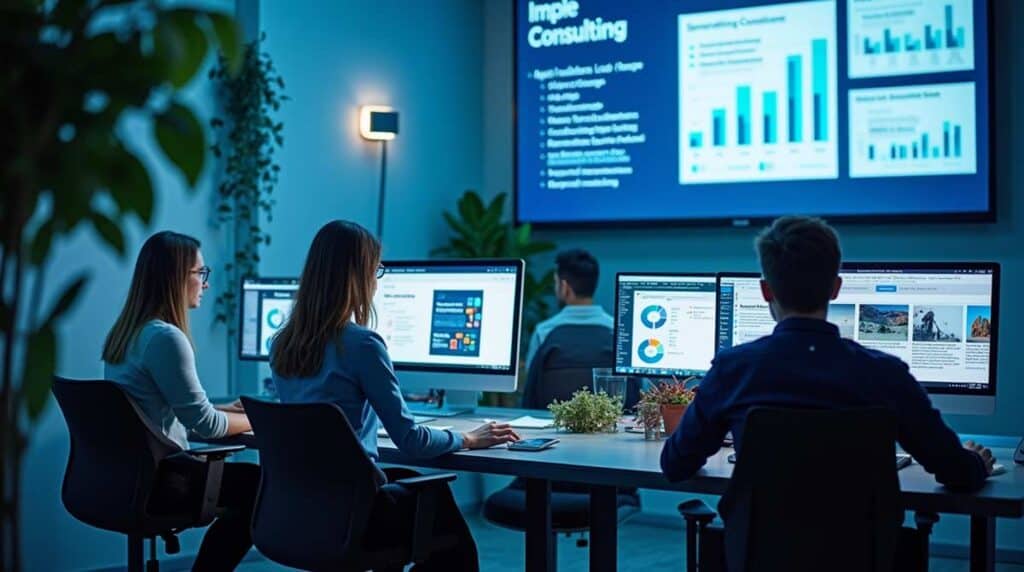
PowerPoint’s user base spans a diverse range of professionals. In workplaces, home offices, and schools around the world, people rely on this audio-visual tool to communicate ideas effectively. For example, consider the variety of users who craft slides on a regular basis:
- Consultants and Financiers: These professionals depend on slides to pitch business strategies and present financial data clearly.
- Professional Speakers: From conference keynotes to training sessions, speakers use PowerPoint visuals to engage audiences and highlight their messages.
- Pharmaceutical and Scientific Professionals: Whether sharing research findings or product information, experts in scientific fields create detailed decks to convey complex data.
This broad usage highlights that PowerPoint is not just for the boardroom—it is a universal medium for sharing information across industries. This omnipresence applies not only to PowerPoint but also to Google Slides, Apple Keynote, Canva, or any number of slideware programs.
Shifting Focus to Student Users
Often overlooked in discussions of PowerPoint users are students – a key persona. Students also produce a substantial number of presentation decks for classes, projects, and academic competitions.
In this post, however, we turn our attention to why students frequently invest more time than necessary in creating their slides. We will examine the factors behind this inefficiency, offering insight into why the process tends to become a time-consuming task for them. By understanding these underlying reasons, educators and productivity experts can better help students streamline their workflow while maintaining high-quality presentations.

How PowerPoint Disrupts Student Focus
Ever catch yourself (or a classmate) spending five hours jazzing up a PowerPoint on photosynthesis – adding green titles, animations, and the perfect leaf clipart – but only about 30 minutes actually learning what photosynthesis is? You’re not alone.
It’s like baking a cake: we spend all our time obsessing over the icing (those fancy slides) and forget to check if the cake is even baked (you know, essentially understanding the topic). Spoiler alert: no amount of slide glitter will explain why plants turn sunlight into sugar.
You’re Not Alone
Focusing on slides instead of studying is a classic student move. Think of it as productive procrastination – doing something that feels like work (“Hey, I’m technically working on my project, right?”) but isn’t the important part. It’s oddly comforting to tweak fonts and colors rather than wrestle with tricky concepts.
Choosing between Calibri or Aptos is way easier than explaining chlorophyll. Isn’t that so?
And hey, who doesn’t love a good animation? It’s the academic equivalent of spending an hour choosing a Netflix show and only 5 minutes actually watching it. We’ve all been there.
Sound familiar? But how do you know that you are wasting time? Here are a few telltale signs that PowerPoint has lured you into its time warp:
- Symptom 1: You know all of PowerPoint’s slide transitions by name (and even have a favorite), but photosynthesis still sounds like a magic spell from Harry Potter.
- Symptom 2: Your slide deck has more colors than a pack of Skittles, yet you couldn’t list all the steps of photosynthesis if your grade depended on it.
- Symptom 3: You promise yourself “I’ll start studying right after I fix this one last font size…” — an hour (and five font changes) later, the books are still untouched.
Fun Fact (or Not-So-Fun Fact)
PowerPoint is not wasting your time, but the way you use it can easily turn you into a time gobbler in disguise.
You tell yourself, “I’ll just pick a quick theme and be done in five minutes.” Ha! Famous last words. Next thing you know, you’ve added more slides, changed the background three times, and you’re obsessing over whether the drop shadow on your text box should be slightly blurrier.
Think of it like this: You open PowerPoint for a quick snack… and suddenly you’re stuck in an all-you-can-eat design buffet.
Meanwhile, the real star of your presentation – photosynthesis itself – is off taking a nap in the corner, waiting for you to pay attention. Did you know plants use sunlight to make food? Your slides won’t tell you that – not unless you learn it first!
Why is Time Wasted?
So why does this happen? Why does a simple class project turn into a marathon of tweaking and tinkering?
Let’s shine a light on this quirky phenomenon. Grab a snack (preferably something green to honor our plant friends 🌱), sit back, and get ready to find out why PowerPoint can turn into such a time-eating monster – and how you can tame this beast before it gobbles up all your homework time.
1. Grades = Gold Stars
Students treat PowerPoint presentations like a school talent show—only instead of singing or juggling, they’re dazzling with slide transitions and clever titles. Why? Because in their minds, the flashier it looks, the better the grade! After all, teachers are human too—they see a polished deck and think, “Wow, this student really put in the effort!”
It’s kind of like wrapping your homework in glittery gift paper… even if what’s inside is just okay, it still looks amazing.
Fun Fact: Nice Work?
Spending too much time making slides look “wow” is like wrapping a pair of socks in ten layers of shiny birthday paper—it looks impressive, but what’s inside still matters. Many students believe that cool animations and stylish fonts give them a 99% chance of hearing “Nice work!” from their teacher—even before a single bullet point is read. But once the teacher starts reading, those flashy visuals set high expectations. If the content doesn’t deliver, the sparkle quickly fades.
Start by making sure your ideas are strong before decorating your slides. Your teacher is grading what you say—not just how it looks. Think of the slides as your backup singers; you’re the star. A great presentation is 80% what you say and 20% how you dress it up. Start with substance. Then sprinkle in the style—not the other way around.
2. Design Fever Is Real
It all starts innocently enough—just one font. Then comes another. And another. Suddenly, you’re mixing more fonts than a cupcake shop mixes frosting flavors.
Then you stumble upon animations (“Ooh, fade-in!”), and before you know it, you’re neck-deep in a rainbow of color schemes. Just when you think you’re done, a shiny new template winks at you and whispers, “Pick me instead!”
Fun Fact: Slide Designs vs. College Major
Believe it or not, some students may spend more time picking the perfect slide design than they do picking a college major. Yep, that’s right—choosing between Wisp and Gallery feels more urgent than deciding their future career path. Talk about priorities!
How do you resolve this problem? Prioritize content before design. Choose a simple, clean template early, then focus on clear messaging and structure. Limit design tweaks to a set time, so you avoid endless revisions and stay focused on what really matters: delivering a meaningful, well-organized presentation.
3. Perfectionism Strikes Again
Trying to make the “perfect” slide is like hunting for a unicorn with a glitter compass—it sounds awesome, but spoiler alert: it doesn’t really exist. You’ll tweak the font, nudge the image, and resize the title box over and over, hoping for slide perfection. But guess what? That “perfect” slide keeps moving just out of reach—like Wi-Fi in a basement.
Perfection is a moving target and chasing it can waste time without meaningful payoff—so you need to know when to stop. Here’s how to break it down:
- The unicorn analogy means that “perfect” doesn’t really exist, especially in subjective things like slide design.
- The moral: Instead of endlessly tweaking for perfection, aim for “good enough and done.”
- Yes, you will have to stop—otherwise, you’ll get stuck in an endless loop of edits that don’t improve your message or grade.
Fun Fact: You Need to Stop
What is the takeaway or moral of this statement? Does this mean that you will have to stop at some point in time? Yes indeed. At some point, you’ve got to ensure that your presentation is saved, and PowerPoint is shut down. Call your deck “better than good enough,” and trust that your teacher isn’t grading the drop shadow.

4. Make a PowerPoint = Vague Instructions
When a teacher says, “Make a presentation,” but doesn’t tell you how many slides, what it should look like, or how detailed it needs to be—it’s like giving someone a bag of flour and saying, “Go bake something amazing!” You’re left wondering: Is this a cupcake situation or a three-tier wedding cake moment?
So naturally, students go overboard just to be safe—adding extra slides, fancy templates, and more animations than a Pixar movie.
Fun Fact: Double the Slide Count!
Without clear instructions, students often double the slide count “just in case”—because more feels safer than less. What is the solution?
Before diving into fonts and flourishes, ask your teacher some basics:
- How many slides do you expect?
- Do you want visuals only or detailed content?
- Is there a time limit?
Your teacher’s looking for clarity and content—not Oscar-worthy slide effects. Focus on making your ideas easy to understand, not flashy for the sake of flash.

5. The Tool Is Also the Toy
PowerPoint isn’t just an assignment—it’s also a digital playground. One minute you’re adding bullet points, and the next you’re testing out animations, flying slide transitions, and that oh-so-smooth morph effect like it’s a video game bonus level.
Give a student PowerPoint and they’ll turn into a part-time motion graphic designer faster than you can say “SmartArt explosion.”
Fun Fact: Spinning Pies
Let’s be real—more than a few students have added a spinning pie chart to a slide for no good reason other than, “Hey, look what this thing can do!” In fact, some pie charts in student presentations spin more than actual pizzas at a pizzeria!
What’s the fix? You need to use PowerPoint’s effects with a purpose, not just for fun.
Here are some thoughts:
- If the chart spins, flies, or explodes just for show—ditch it. Every animation should make your message clearer, not just cooler.
- Limit yourself to one animation or transition per slide, tops. Think of it like seasoning food—too much spice, and you lose the flavor.
- Let the numbers speak for themselves. If your chart is strong, it doesn’t need to twirl like it’s auditioning for a dance show.
6. Group Work = Glacial Progress
Working in a group sounds like a great idea—until it actually starts. Suddenly, it’s three times the opinions, twice the slide edits, and always one person who mysteriously disappears halfway through. Poof! Vanished like they’ve been abducted by the Slide Spirits.
Imagine trying to bake a cake with four people. One wants chocolate, another wants carrot, someone insists on gluten-free, and the fourth person just licked the spoon and left the kitchen. The result? Confusion, delays, and probably an over-frosted mess.
Worse, in a typical student group, 1 out of every 4 members will go radio silent… until the moment grades are announced. Then suddenly, they reappear with a cheery, “How did we do?”
Fun Fact: Survive and Succeed
Treat your team like a movie crew—someone’s the director, someone’s the scriptwriter, someone’s the editor. When everyone knows their job, there’s less overlap and fewer “Hey, who was doing that?” moments.
Also, plan to finish a day or two early. This leaves time for last-minute fixes, freak-outs, and yes… reeling in The Ghost if they suddenly reappear.
You can also use a group collaboration option such as PowerPoint for the Web, or even Google Slides. These cloud tools let everyone work in the same place. No more “I thought you had the latest version!” drama.
Finally, build your slides assuming someone might drop out. Be ready to absorb their task or reassign it. Sad but true: not everyone makes it to the credits.
7. Procrastination in a Fancy Suit
Some students are PowerPoint masters—not just in making slides, but in looking busy while avoiding the hard stuff. You’ve probably seen it (or done it): staring intensely at your screen, flipping between images, resizing icons, testing different fonts—looking like a serious presentation wizard. But are you actually working on your message? Not really.
Hunting for the perfect image is one of the sneakiest forms of procrastination. Sure, you’re still at your desk. You’re clicking, scrolling, adjusting… but none of it brings you closer to understanding your topic or finishing your talk. It’s like vacuuming your room when you’re supposed to be studying—sure, it feels productive, but you’re just dodging the real work.
We do this because design is fun and it gives instant rewards. Picking a nice image or color feels like progress. But real progress means thinking, writing, practicing—and that’s not always as instantly satisfying. Studies show people often choose “easier” tasks that make them feel busy over harder tasks that actually move them forward. In other words, PowerPoint image-hunting is a classic brain trick.
Fun Fact: The Takeaway
If you find yourself adjusting shadows for the umpteenth time or comparing two nearly identical clipart images—pause. Ask yourself, “Is this helping my message… or just helping me delay? Procrastination wearing a PowerPoint badge is still procrastination. So, take off the disguise, do the hard stuff first, and save the image tweaking for dessert—not the main course!
The Bottom Line
Let’s be honest—making a PowerPoint shouldn’t feel like baking a three-tier wedding cake with fondant roses, edible glitter, and a light-up fountain in the middle. But for a lot of students, it does. Why? Because every slide feels like a chance to impress, express… and yes, sometimes stress.
What starts as “make a quick presentation” quickly snowballs into a full-blown design extravaganza. You want your classmates to go “wow,” your teacher to nod approvingly, and your inner perfectionist to stop yelling. So you add extra visuals, try five different templates, test six transitions, and suddenly your “simple class deck” needs a project manager and a coffee budget.
Students pour time into their slides not just to fulfill the assignment, but to stand out. They want their deck to look professional, feel personal, and ideally, win a few compliments too. But here’s the kicker: All that effort often adds stress instead of clarity. A presentation isn’t judged by how long it took—it’s judged by how well it communicates your message.
The purpose of your PowerPoint isn’t to be the fanciest cake at the bake sale. It’s to help your audience understand what you’re saying. Design matters, sure—but clarity, confidence, and clear content win the grade. So next time you’re tempted to spend an hour adjusting the glow around your slide title, just remember: it’s a classroom, not a wedding… and your teacher probably doesn’t even like fondant.
Fake Productivity vs. Real Progress
Now that you have read this entire post, or even if you skimmed some of the content and ended up here, it is important for you to realize what path you are on.
Use this checklist to help spot whether you’re truly making progress on your presentation—or just looking busy.
Fake Productivity (Looks Busy, Does Little)
☐ Spent 20+ minutes looking for the ‘perfect’ stock photo
☐ Changed fonts often without changing content
☐ Tested 4+ slide templates without deciding on one
☐ Added animations just because they look cool
☐ Zoomed in to align shapes pixel by pixel
☐ Googled PowerPoint pizzazz for inspiration
☐ Replaced an image just to replace it again
☐ Created a fancy title slide before writing the body content
☐ Revisited the color scheme… for the 5th time
☐ Thought ‘I’m working hard,’ but haven’t finished a single full slide
Real Progress (Actually Moves You Forward)
☑ Outlined your main message and key points
☑ Created content for each slide before touching the design
☑ Wrote clear headlines with bullet points (or paragraphs) with purpose
☑ Wrote notes for each slide to help you remember your narrative and message
☑ Chose visuals that explain or support your ideas
☑ Practiced your timing and delivery
☑ Ensured the slides are readable from a distance
☑ Used animations only to emphasize important points
☑ Finished a rough draft of your full deck
☑ Reviewed slides with a friend or classmate
☑ Felt a little bored but got real work done anyway
Final Tip
If you’re not sure whether a task is productive, ask yourself: “Will this help my audience understand better?”
If not—it’s probably PowerPoint procrastination in disguise.
Related Posts
 Ever notice no matter what company you walk into—big, small, startup, or dinosaur—someone, somewhere is clicking through a PowerPoint? It’s like the o...
 When people think “spreadsheet,” their minds usually drift to something about as thrilling as watching paint dry on a tax form. But Excel? It flipped ...
 Most computer programs are planned, built, tested, and released. Some are successful and others just gather digital dust. But PowerPoint? Oh no, this ...
 In today's world, digital technology has completely changed how we communicate, share ideas, and present information. From emails to video calls to fa...